NirvaShare supports quick sharing of files and folders without creating or assigning a Login Profile. Authentication methods can be selected based on the required security level. This option is useful for sharing files or folders without configuring a Login Profile. Available authentication methods include Password Protected, Email OTP, and Public Access, providing different levels of access control for shared content.
New Share
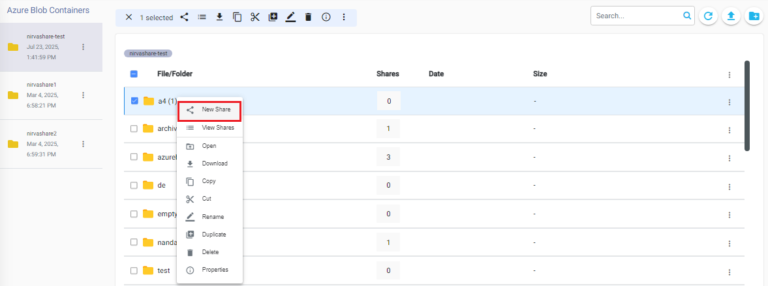
From the NirvaShare Admin Console, click Storage from the left menu and browse to the required file or folder. Right-click the file or folder and select New Share.
Access Method
Click the Share Details icon to add a Share Name and Description, if needed. Both fields are optional.To create a share without a Login Profile, keep the Use Login Profile toggle disabled.
Choose one of the following authentication methods based on how you want users to access the shared file or folder.
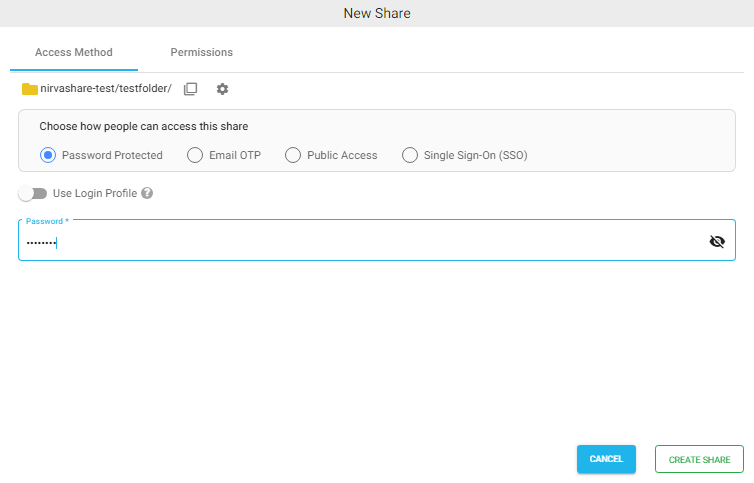
Password Protected
Select Password Protected to secure the shared file or folder with a password.
Enter the required password. Users must provide this password when accessing the shareable link to view or access the shared content.
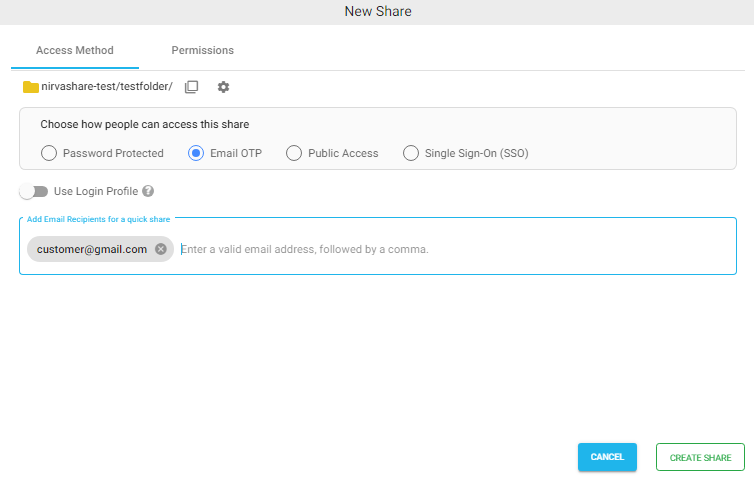
Email OTP
Select Email OTP to authenticate users through a One-Time Password (OTP).
Select Email OTP as the authentication method when creating the share.When users click the shareable link, they can enter their email address to receive an OTP. They must enter the OTP received in their email to verify their identity and access the shared file or folder. Note: Make sure to configure the Email Server in Settings for OTP to work properly.
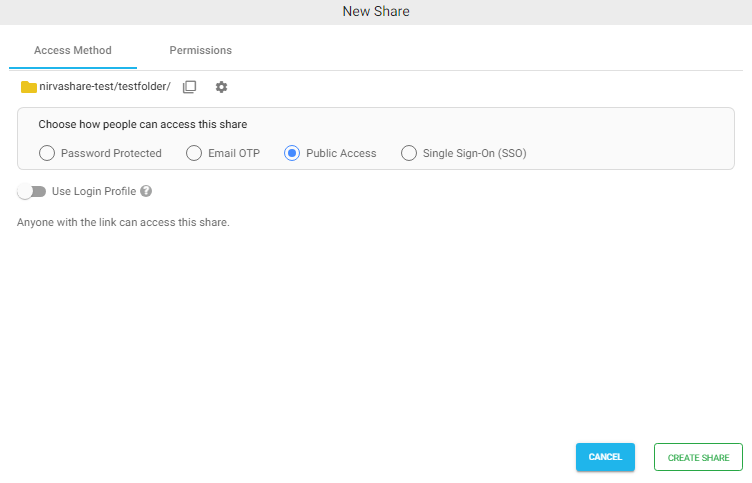
Public Access
Select Public Access to allow users to access the shared file or folder without an authentication prompt.
Anyone with the shareable link can access the shared content based on the permissions configured for the share.
Single Sign-On (SSO)
Select Single Sign-On (SSO) to authenticate users through an external SSO provider.
SSO authentication requires an SSO Login Profile. Select the configured SSO Login Profile from the dropdown. For more information, refer to the Login Profile documentation.
(Optional) Enable the Expiration Period toggle to configure the Validity Period, if required. For more information, refer to the Share Validity Period documentation.
Ready to Share
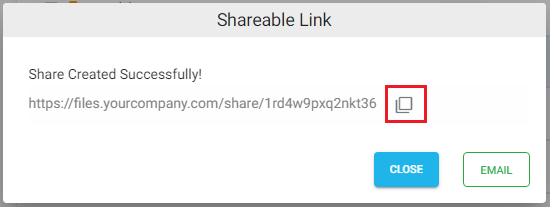
After configuring the required access method and permissions, click Create Share to create the share. Once the share is created, the Shareable Link pop-up appears. You can copy the link or send it directly through email.
Users can access the shared file or folder using the authentication method configured during share creation.