A direct downloadable file share allows users to download a file directly using a shareable link without opening the file viewer. This document explains how to create a direct downloadable file share, configure permissions, and share it with users.
New Share
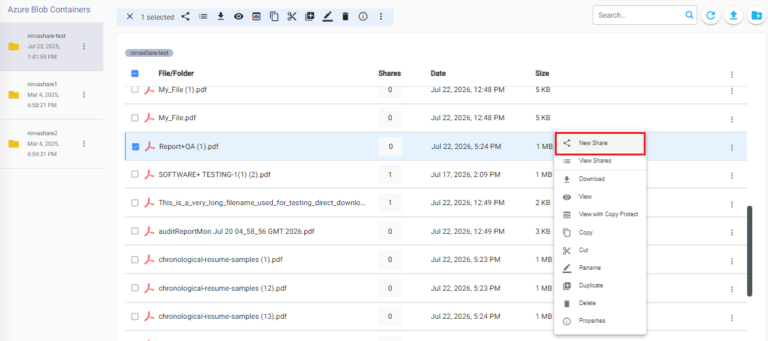
From the NirvaShare Admin Console, click Storage from the left menu and browse to the required file. Right-click the file and select New Share.
Basic Info
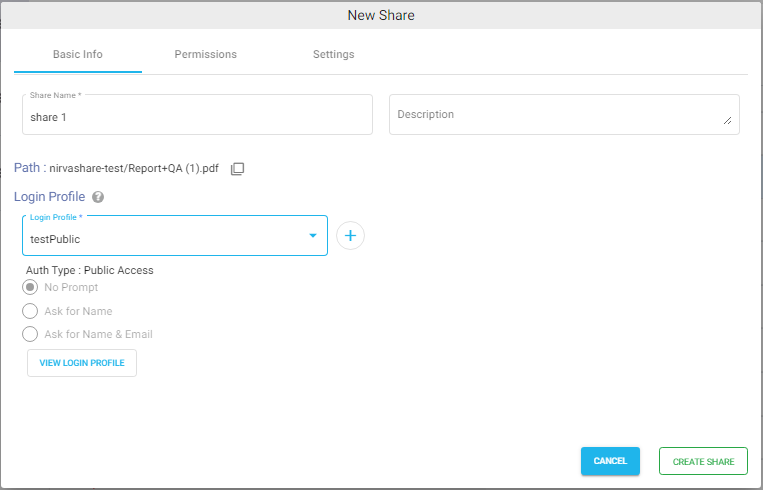
Provide a Share Name and Description for the direct downloadable file share.
Login Profile
Select a Login Profile to configure authentication for the direct downloadable file. The Direct Download File option is available only with the following login profiles, for more information click on the link.
SSO behaviour: If the user is already signed in through the configured SSO provider, the file download starts immediately without prompting for authentication. Otherwise, the user is redirected to the SSO login page. After successful authentication, the file download begins automatically.
Next, move to the Permissions tab.
Permissions
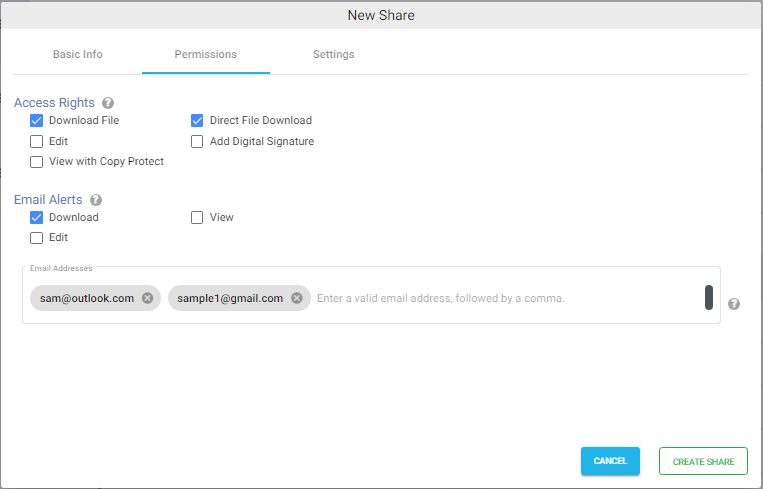
To enable Direct File Download, select the Direct Download File checkbox. When this option is enabled, users who open the share link will immediately start downloading the file instead of viewing the share page.
(Optional) specify one or more email addresses to receive notifications when the file is downloaded. Multiple email addresses must be separated by commas.
Settings
(Optional) Configure the Validity Period, if required. For more information, refer to the Settings Share Validity Period documentation.
Click on Create Share to create the new share.
Ready to Share
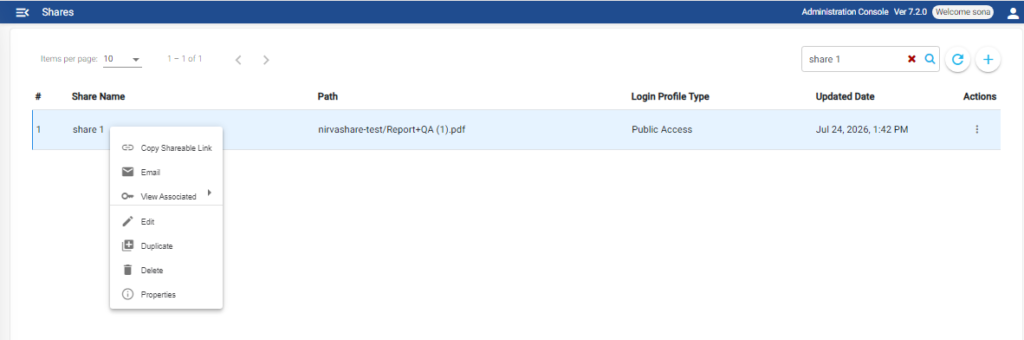
Once the share is created, right-click the share to view the available actions. You can copy the Shareable Link or send it directly through email.