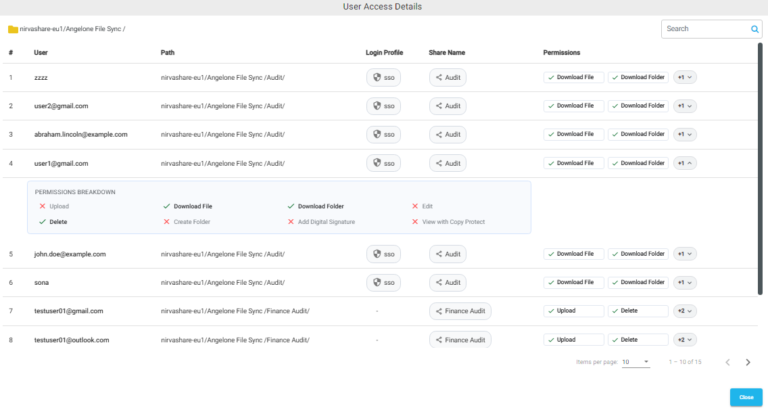
NirvaShare provides the Access Details option to view users who have access to shared files and folders. It displays user access information along with the associated Login Profile, share name, path, and assigned permissions.
Steps to View User Access Details
Log in to the NirvaShare Admin Console.
Navigate to Storage.
Select any file or folder.
Click the Actions option and select Access Details.
The User Access Details window opens and displays the users who have access to the shared files or folders.
User Access Details
The User Access Details window displays the users associated with the Login Profile assigned to the shared file or folder, along with their access permissions. When multiple shares are created within the current folder and its subfolders, all corresponding user access details are listed in the parent folder’s Access Details window.
The information includes user details, file or folder path, assigned Login Profile (if applicable), share name, and permissions. Guest users are also listed based on the authentication method configured for the share. Additional permissions can be viewed using the dropdown next to the displayed permissions.
Search
Use the Search field to search for a specific user in the User Access Details list.