NirvaShare supports bulk user import through a CSV file, allowing multiple users to be added to a Login Profile quickly instead of creating each user individually.
Prerequisites
A Login Profile must be created before importing users.
Bulk user import is supported only for SSO and Form Based Authentication (Group of Users) Login Profiles.
The CSV file must follow the required format and include all mandatory column headers.
CSV File Format
Prepare a CSV file with the following column headers in the specified order:
Username, First Name, Last Name, Email Address
Ensure that the column headers are included in the first row and that user details are entered under the corresponding columns.
How to Import Users
In order to import multiple users into a Login Profile in NirvaShare, follow the steps below.
Log in to the NirvaShare Admin Console.
Navigate to Login Profiles.
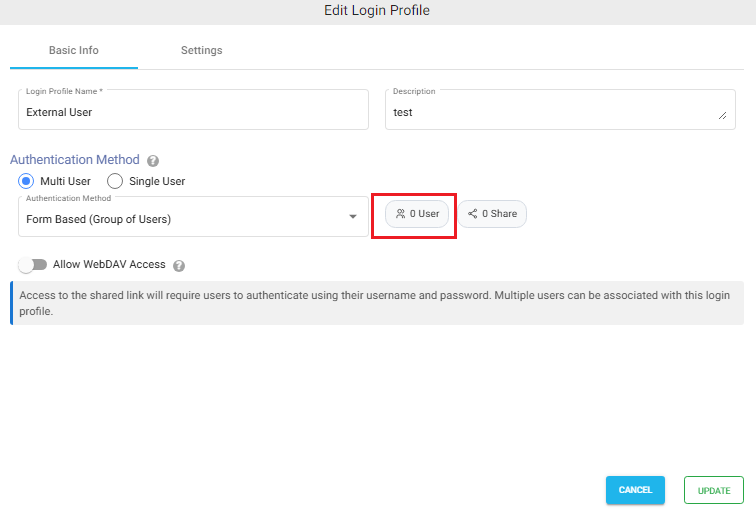
Select the required SSO or Form Based Authentication (Group of Users) Login Profile and click Edit.
Click the Users button to open the Users page.
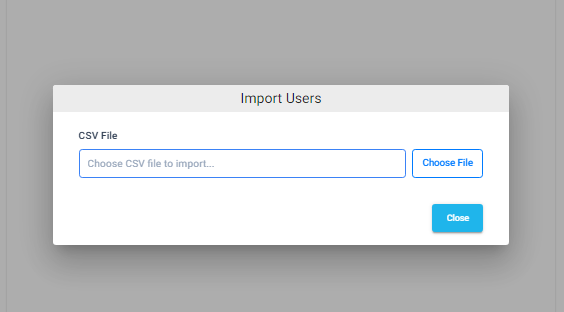
Click Import Users at the top of the page.
In the Import Users dialog, click Choose File and select the prepared CSV file.
Upload the CSV file to import the users.
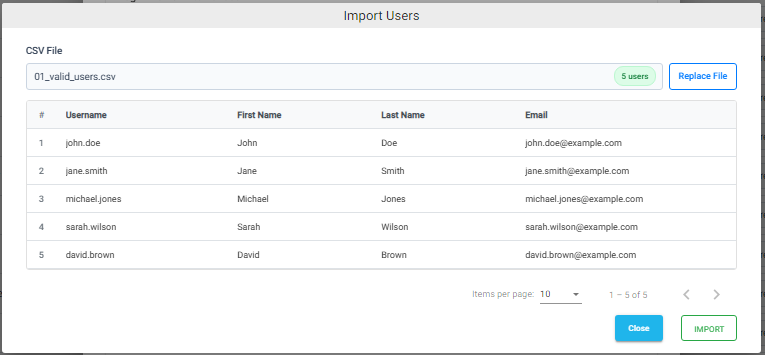
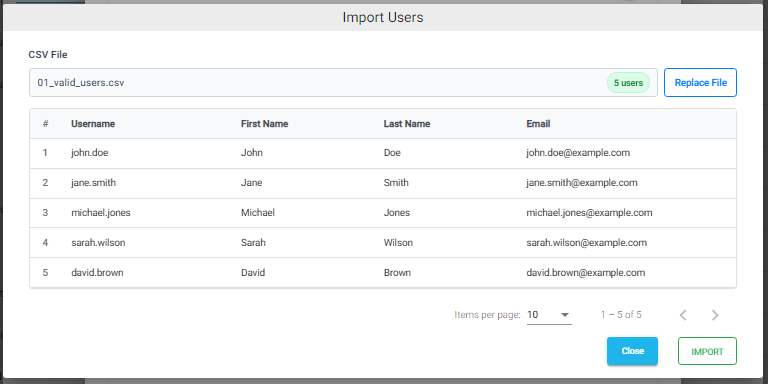
Once the CSV file is selected, the users in the file are listed in the Import Users dialog for review.
Click Import to start importing the users.
Once the import is completed, the imported users are listed on the Users page under the selected Login Profile. Note: After importing users, navigate to the Users listing page, click the Actions option for the required user, and select Set Password. This option is available only for Form Based Authentication (Group of Users) Login Profiles and is not applicable to SSO Login Profiles.
Import Validation
The following validations apply during bulk user import:
Only CSV files are accepted. Other file formats are rejected.
The CSV file must contain the required column headers in the correct order: Username, First Name, Last Name, and Email Address.
Ensure that valid email addresses are provided for all users.
Users who already exist are skipped during re-import.
After a successful import, the imported users appear in the Users list.