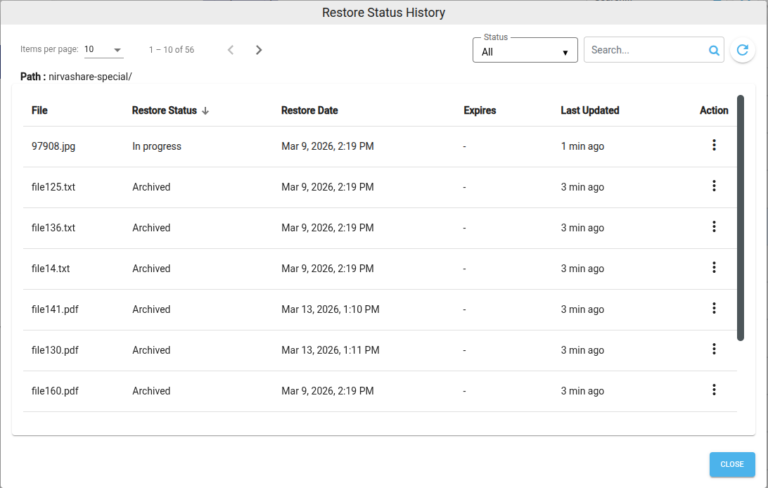
The Restore Status page allows administrators to monitor and manage archived file restore operations. It displays the current status of restore requests and provides options to search, update, and remove restore records.
View Restore Status
Follow the steps below to view the restore status of archived files.
Log in to the Admin Console.
Navigate to Storage.
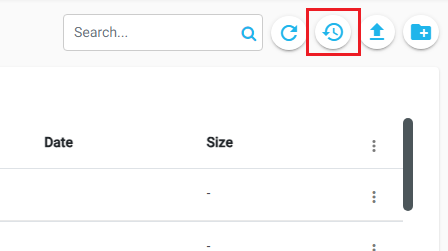
Click the Restore Status icon in the top-right corner.
The Restore Status page displays all restore requests along with their current status.
Search
To locate a restore record:
Enter the file name in the Search box.
Matching restore records are displayed automatically.
Update Status
To refresh the latest, restore status:
Select one or more restore records.
Click Actions for the selected record(s), and then click Update Status.
The system retrieves the latest restore status from the storage provider.
Remove
To remove restore history:
Select one or more restore records.
Click Actions for the selected record(s), and then click Remove.
A confirmation dialog appears stating that only the archive status will be removed, not the actual file.
Click REMOVE to confirm the action.
Note: Removing a restore record deletes only the history entry. The original file remains in storage.