NirvaShare allows administrators to restore files stored in the Azure Blob Archive tier by rehydrating them to the Hot or Cool tier. Once the restore is complete, the files can be accessed normally.
This section explains how to restore and manage archived files stored in Azure Blob Storage.
Restore Files/Folders
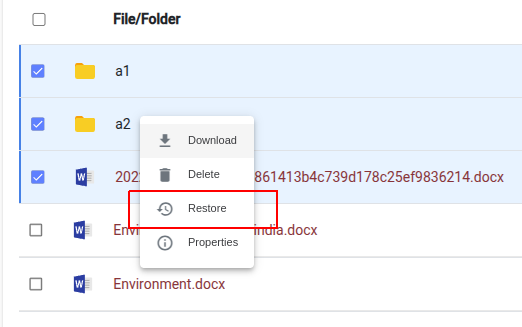
To restore archived files, select one or more files/folders from the Storage menu and choose Restore from the action menu.
Please note that only archived files can be restored, and archived file names are displayed in red.
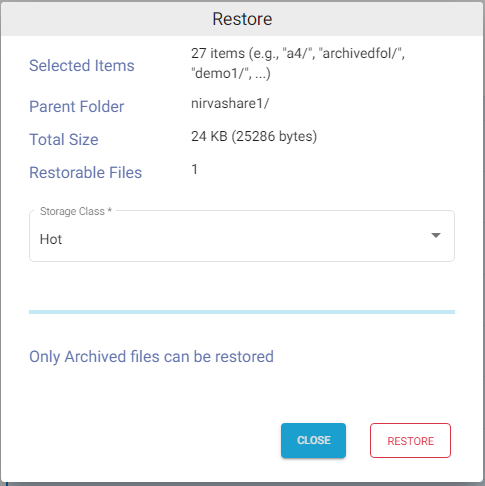
In the restore dialog, Select the destination access tier:
Hot
Cool
Click RESTORE.
Note: Restored Files remain permanently in the selected Hot or Cool access tier and are not returned to the Archive tier.
Restore Status
Once the restore request is initiated, you can monitor its progress from the Restore Status page. For more information about viewing, searching, updating, and removing restore records, refer to the Managing Restore Status documentation.