Azure Blob Storage supports multiple access tiers for efficient data storage. This document explains how to configure Azure Blob Archive Storage with NirvaShare and manage archived files.
Storage Configuration
The Azure Blob Storage credentials must be configured in NirvaShare to enable access to the storage. Follow the steps below to complete the configuration.
Log in to the Admin Console of NirvaShare.
Click Settings from the left menu and then select Storage.
Edit the File Storage configuration.
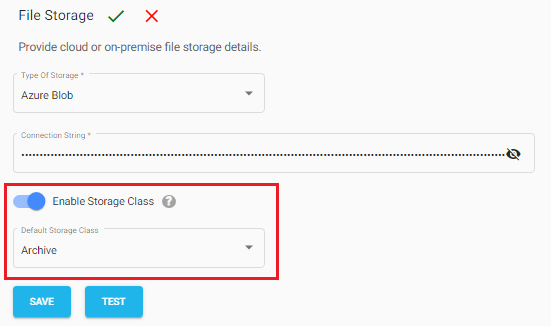
Select Azure Blob Storage as the storage type.
Provide the required Azure Blob Storage credentials.
Enable the Storage Class option.
Select the default storage tier:
Hot
Cool
Archive
Click Save.
Notes
The selected storage tier will be used as the default storage tier for all newly uploaded files.
Administrators can override the default tier and select Hot, Cool, or Archive while uploading files from the Admin Console.
End users cannot select the storage tier during upload. The configured default tier is automatically applied.
Files uploaded to the Archive tier cannot be viewed, downloaded, or modified until they are restored (rehydrated) to either the Hot or Cool tier.