Admin Roles
Admin Roles define the permissions available to delegated administrators in NirvaShare. Roles help control which administrative tasks delegated administrators can perform, such as managing shares, login profiles, audits, and storage access. Only Super Administrators can create, modify, and manage roles.
By default, NirvaShare includes two system-generated roles:
- Super Admin – Provides full administrative access and cannot be edited or deleted.
- Default Role – Automatically assigned to new delegated administrators. This role can be edited to modify its permissions but cannot be deleted.
Create Admin Role
To create a new Admin Role:
- Log in to the NirvaShare Admin Console as a Super Administrator.
- Navigate to Admin Access, click On Roles.
- Click New Role.
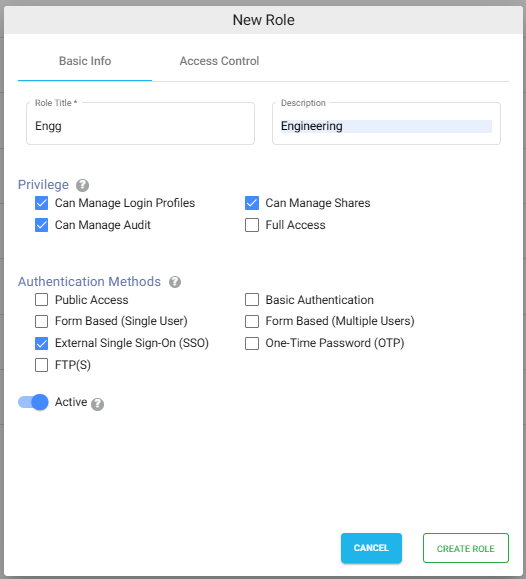
- Enter a Role Name and an optional Description.
- Select the required Privileges.
- Click CREATE ROLE.
Note: Roles can be edited at any time. Any changes to a role are automatically applied to all delegated administrators assigned to that role.
Privileges
Privileges determine the administrative features that delegated administrators can access.
- Manage Shares – Allows administrators to create, modify, delete, and manage shares.
- Manage Login Profiles – Allows administrators to create, edit, and manage Login Profiles used for authentication.
- Manage Audits – Allows administrators to view and manage audit logs for monitoring user and administrative activities.
- Full Access – Grants complete administrative access, including all available management features, similar to a Super Administrator.
Authentication Methods
Authentication Method privileges determine which Login Profile authentication methods delegated administrators can use when creating or managing Shares and Login Profiles.
For example, if only Public Access and External Single Sign-On (SSO) are enabled, the delegated administrator can create and manage shares and Login Profiles using only those authentication methods.
Access Control
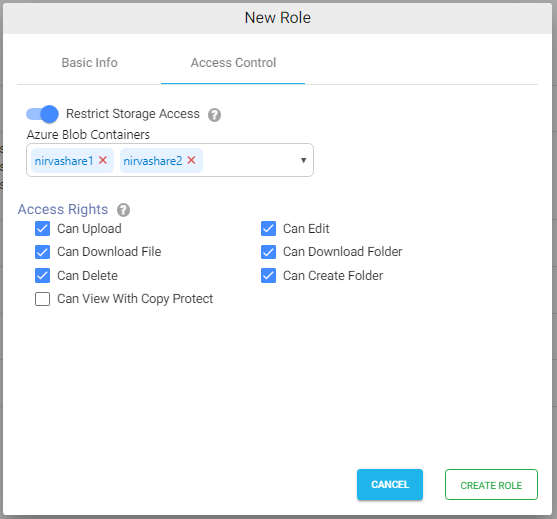
The Access Control tab allows Super Administrators to control which storage buckets or containers delegated administrators can access.
- If Restrict Storage Access is disabled, delegated administrators can access all configured storage buckets or containers, subject to their assigned privileges.
- If Restrict Storage Access is enabled without selecting any bucket or container, delegated administrators do not have permission to access the Storage section.
- If Restrict Storage Access is enabled and one or more buckets or containers are selected, delegated administrators can access and manage only the assigned buckets or containers.
Note: Storage access restrictions apply only to delegated administrators. Super Administrators always have access to all configured storage buckets and containers.
Access Rights
Access Rights define the operations that delegated administrators are permitted to perform within the assigned storage locations. Enable the required permissions to grant delegated administrators access to specific file and folder operations.
- Can Upload – Allows uploading files and folders.
- Can Download File – Allows downloading individual files.
- Can Download Folder – Allows downloading folders as ZIP files.
- Can Edit – Allows editing supported Office documents when ONLYOFFICE integration is configured.
- Can Delete – Allows deleting files and folders.
- Can Create Folder – Allows creating new folders.
- Can View with Copy Protect – Allows viewing supported documents using Copy Protection.
Note: Delegated administrators can perform only the actions enabled in Access Rights. Any permissions that are not selected will not be available to them, even if they have access to the assigned buckets or containers.