
How NirvaShare makes it easier to search for files in AWS S3
If one thinks of a robust and highly efficient data storage service in this day and age, the first thing that pops up in their mind is Amazon simple storage service or Amazon S3 which is a part of the AWS cloud solutions offered by Amazon. With Amazon S3, businesses can have uninterrupted, effective and unparalleled connectivity irrespective of one’s location. It can currently store up to 5 Terabytes of computer files and offers best encrypted security. NirvaShare makes it easier to search for files in AWS S3.
Challenges faced while searching for files in AWS S3
Even though AWS S3 is a wonderful object storage service, it poses quite a challenge when it comes to searching for a particular file or object.
- Metadata search – Unlike conventional file systems, searching for a file or object based on its metadata is challenge.
- Absence of Indexing – AWS S3 does not have any in built indexing options that can make search easier.
- Limited search options – If you want to search for a particular object in AWS S3, you have to browse through all the folders which is time consuming and makes it difficult to search in a particular bucket or folder.
- Access control – Limiting access and search capabilities to specific folders get complicated as it requires numerous permissions to manage access with specific users.
File search made easier with NirvaShare
NirvaShare is an enterprise level secure file sharing and access management solution which aims to make file searching easier on existing object storage such as AWS S3, Azure Blob etc. The platform can aid in efficiently sharing large files with secure access controls.
Along with file sharing, Nirvashare also has the capability to search for a file or an object in AWS S3 and thereby addresses the limitations involved in searching for a file in AWS S3. By using Nirvashare software, you can search files or objects located in any of the buckets quickly and efficiently on storage having several millions of files. In order to access this feature, customers have to make use of a feature called Index service in Nirvashare. Given below is a brief outline of steps which you can follow to start using Index service.
Steps for enabling Index service:
To enable Index service, you have to
- Login to Admin Console as a Super Administrator.
- Click Settings from the left menu.
- Select Search Service and open the configuration page.
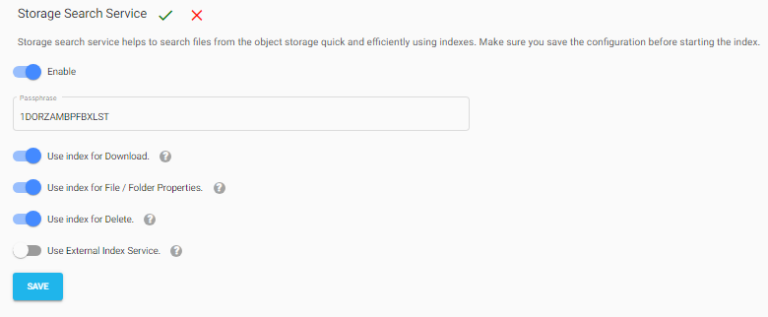
- Enable the Storage Search Service toggle.
- A passphrase will be automatically generated. Leave the generated value as default unless a custom value is required.
Configure the available index options if needed:
- Use index for Download – Allows downloads to use indexed metadata for faster access.
- Use index for File / Folder Properties – Uses the index to retrieve file or folder properties quickly.
- Use index for Delete – Uses indexed information when deleting files or folders.
- (Optional) Enable Use External Index Service if an external indexing service is integrated.
- Click SAVE to apply the configuration.
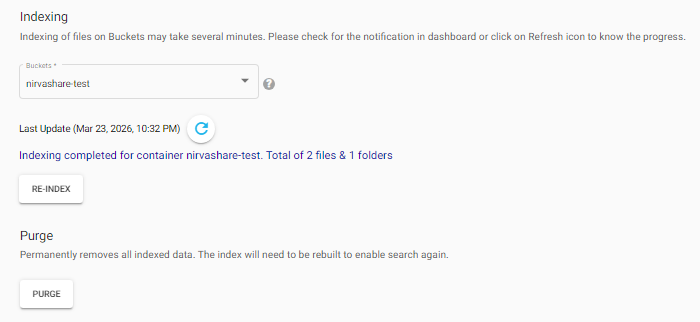
- Select the required bucket or root container from the Buckets dropdown list.
- Click RE-INDEX to start the indexing process.
- The system will begin indexing files in the selected bucket, which may take several minutes depending on the number of files present.
- While indexing is in progress, the status Indexing in Progress will be displayed. If needed, you can click ABORT to stop the ongoing indexing process.
- After the indexing is completed, a notification is added in dashboard as well.
Purge
The Purge option permanently removes all indexed data from the system. After performing a purge, the existing index will be deleted, and search functionality will not work until the indexing process is performed again.
To purge indexed data:
- Navigate to the Purge section on the Storage Search Service page.
- Click PURGE to remove all indexed data.
- After purging, you must run RE-INDEX again to rebuild the index and enable search functionality.
Search files using Index service
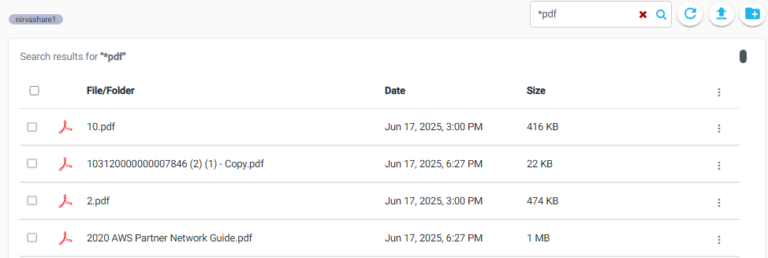
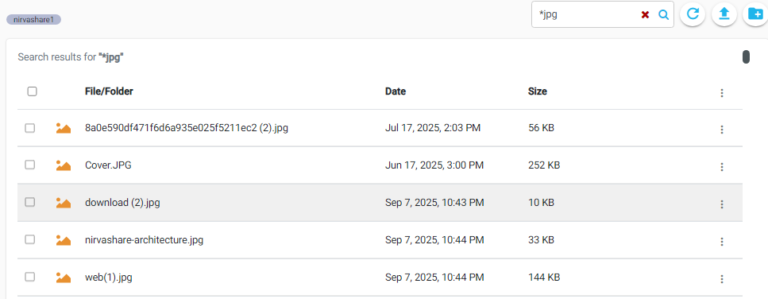
After the files are indexed and the index service is enabled, users from Admin Console and User app can search files based on name or pattern. The Search follows a wild card pattern and is not case sensitive. Below we have mentioned a few examples to make it easier for the user.
- woo: Searches files whose name partly match to woo.
- *.pdf: Searches files whose extension ends with pdf.
- n*.pdf: Searches files that has extension as pdf and filename starts with “n”
If you wish to search files in a specific folder, you should navigate to sub folders and perform the search. The resulting files will be those pertaining to the current folder and its sub folders.
Searching files in AWS S3 is no longer cumbersome or difficult. NirvaShare makes it easier to overcome this challenge in AWS S3 with its user-friendly software which is very much useful for both large- and small-scale organizations.