
Search Documentation
< All Topics
Enable Index Service
Indexing in NirvaShare enables the system to scan and organize file metadata for fast search filtering, and efficient data retrieval. To allow users from both The Admin Console and User Facing App to search files efficiently using indexed metadata, the Storage Search Service must be enabled.
Configuration
Follow the steps below to enable and configure the indexing service.
- Login to The Admin Console as a Super Administrator.
- Click Settings in the left menu.
- Select Search Service and open the configuration page.
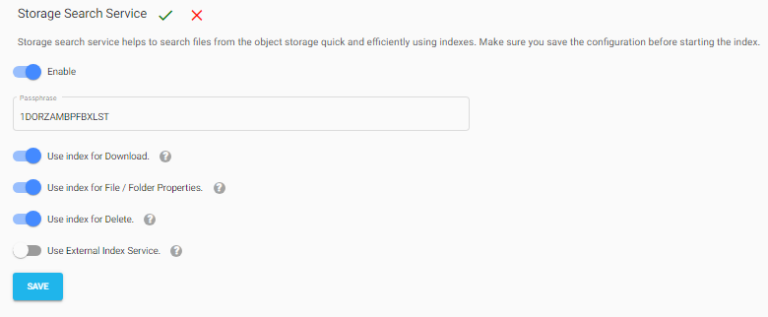
- Enable the Storage Search Service toggle.
- A passphrase will be automatically generated. Leave the generated value as default unless a custom value is required.
Configure the available index options based on your needs:
- Use index for Download – Allows downloads to use indexed metadata for faster access, especially while downloading a large number of files.
- Use index for File/Folder Properties – Uses the index to retrieve file or folder properties quickly.
- Use index for Delete – Uses indexed information when deleting a large set of files or folders.
- Enable “Use External Index Service” if The NirvaShare Search Service is deployed externally and provide the external IP with port.
- Click SAVE to apply the configuration.
Posted
Updated
Table of Contents