
Sharing Files and Folders in NirvaShare
NirvaShare enables secure file and folder sharing with internal and external users while providing complete control over access. Whether collaborating with colleagues, sharing documents with customers, or publishing content for public access, NirvaShare offers flexible sharing options with enterprise-grade security. A share can be created for:
- A single file
- An entire folder
- Internal users
- External users
- Anonymous (public) access
- Password protected.
- External Single Sign-On (SSO)
Administrator users can configure each share with permissions, expiration dates, download restrictions, password protection, and authentication requirements.
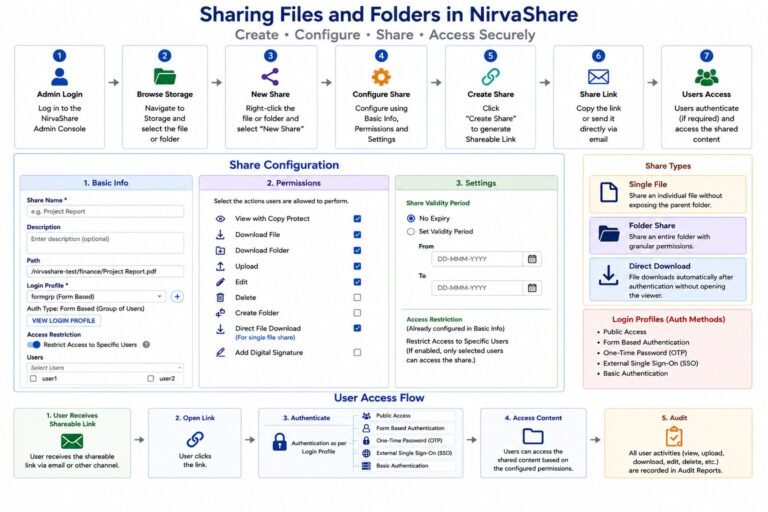
Creating a Share
NirvaShare simplifies file and folder sharing with a quick and intuitive process.
- Sign in to NirvaShare.
- Browse to and select the required file or folder.
- Configure the desired sharing options and permissions.
- Click Create Share.
NirvaShare generates a secure share link that you can copy and send to the intended recipients.
Types of Shares
NirvaShare supports multiple sharing methods depending on your security and collaboration requirements.
Public Share
A public share allows anyone with the link to access the shared content. This option is ideal for:
- Sharing brochures
- Product documentation
- Public downloads
- Software installers
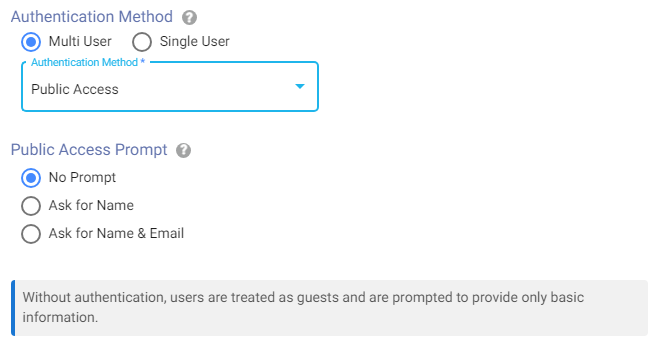
You can also choose how recipients access the shared content. They can either access it directly or be asked to provide their name or email before accessing the shared content.
The Permissions tab allows you to configure access rights for a shared folder.
Password Protected Share
For sensitive documents, enable password protection.Recipients must enter the password before accessing the shared content.
This provides an additional layer of security when distributing confidential information.
Internal User Share
Share content only with authenticated users within your organisation. Users must log in before accessing the shared file or folder. This option is commonly used for:
- Department collaboration
- Project teams
- Internal documentation
SSO Protected Share
When Single Sign-On (SSO) is configured, shares can require authentication through your identity provider. Supported identity providers include:
- Microsoft Entra ID
- Okta
- Keycloak
- Authentik
- Google Workspace
- Salesforce
- Any SAML 2.0 compatible provider
Users authenticate using their corporate credentials before accessing the shared content.
OTP Protected Share
An OTP Protected Share requires recipients to verify their identity using a One-Time Password (OTP) before accessing the shared content.This option is ideal for:
- Sharing confidential documents
- Sending sensitive information
- Securely sharing files with external users
Recipients receive a one-time password via email, which must be entered to access the shared file or folder.
Sharing Files
When sharing a file, you can configure how recipients interact with it. Common options include:
- View online
- Download the file
- Direct file download
- Edit online
- Copy protection
- Expiration date
- Email notifications
Sharing Folders
Folder sharing allows recipients to access an entire directory instead of a single file. Depending on the permissions granted, users may be able to:
- Download files
- Upload new files
- Delete files
- Rename files
- Create folders
- Edit documents online
- Copy Protection
- Expiration date
- Email notifications
Folder sharing is ideal for collaboration with customers, partners, and project teams.
Share Permissions
NirvaShare provides granular permissions to control recipient actions. Typical permissions include:
| Permission | Description |
|---|---|
| View | To view files in read only mode. |
| Download | Download shared files. |
| Upload | Upload files to the shared folder. |
| Edit | Modify existing files. |
| Delete | Remove files. |
| Rename | Rename files and folders. |
| Create Folder | Create new folders. |
| Copy Protection | Prevent recipients from copying content from the shared file. |
Administrators can customise available permissions based on organisational policies.
Direct File Download
For downloadable content such as installers, PDFs, videos, or archives, NirvaShare supports Direct File Download. When enabled, opening the share link immediately starts the file download instead of displaying the file preview page.This is useful for:
- Software distribution
- ISO images
- Product manuals
- Public downloads
Note: To enable Direct File Download, the Download File permission must also be enabled.
Expiration Date
You can optionally set an Expiration Date when creating a share. If configured, the share link remains accessible until the specified date and time. After the expiration:
- The share link becomes invalid.
- Recipients can no longer access the shared content.
If no expiration date is set, the share remains active until it is manually disabled or deleted.
Download Limits
Administrators can configure the maximum folder size and the maximum number of files allowed for a folder download. If either limit is exceeded, the folder cannot be downloaded.
This feature is useful when distributing large sets of files.
IP Whitelisting
IP Whitelisting restricts access to shared files and folders by allowing only approved IP addresses or IP address ranges. Any access attempt from an unauthorized IP address is denied and recorded in the audit log.
This feature provides an additional layer of security and is ideal for restricting access to trusted corporate networks, VPNs, or specific locations.
Email Notifications
NirvaShare can notify share owners about activity on their shared content.Depending on system configuration, notifications can include:
- Share accessed
- File Downloaded
- File Viewed
- File Uploaded
- File Deleted
- Folder Created.
These notifications help administrators monitor how shared content is being used.
Secure Share Links
NirvaShare generates secure, unique share links that enable users to share files and folders without exposing the underlying storage location. Each share link can be configured with security controls to ensure that only authorized recipients can access the shared content.
Share Audit and Activity Tracking
NirvaShare records detailed audit events for all file and folder access performed through share links, providing administrators with complete visibility into user activity. These audit logs help monitor usage, investigate security incidents, and meet compliance and governance requirements.
Each audit record includes key information such as:
- Username
- User IP address
- Date and time of the event
- Audit event type
- File or folder name
- Share link
- Operation
The following audit events are captured:
| Audit Event | Description |
|---|---|
| Login Success | A recipient successfully authenticated to access the shared content. |
| Login Failed | An unsuccessful authentication attempt was made. |
| Logout | A recipient logged out of the shared session. |
| Download | A file was downloaded from the shared link. |
| View | A file or folder was viewed through the shared link. |
| Upload | A file was uploaded to the shared folder, if upload permission is enabled. |
| Edit | A shared file was modified. |
| Delete | A file or folder was deleted from the shared location. |
| Create Folder | A new folder was created within the shared folder. |
| Access Denied | An attempt to access the shared content was denied due to insufficient permissions, an expired share, or authentication failure. |
Best Practices
To maximise security when sharing files and folders:
- Use password protection for shares containing sensitive or confidential information.
- For better security use Single Sign-On (SSO) and Multi-Factor Authentication (MFA) to provide stronger authentication and reduce the risk of unauthorized access to shared content.
- Set an expiration date to ensure share links are automatically disabled when no longer needed.
- Grant only the minimum permissions required (view, download, upload, or edit).
- Share files with specific recipients instead of distributing links publicly whenever possible.
- Enable email notifications to receive alerts when recipients access, download, upload, or modify shared files, allowing you to monitor file activity in real time.
- Periodically review and remove unused or expired shares.
- Monitor audit logs regularly to detect unauthorized or suspicious activity.
- Restrict folder download limits to prevent excessive downloads of large datasets.
- Revoke or disable share links immediately if they are no longer required or are suspected to be compromised.
- Use upload permissions only when recipients need to contribute files.
- Educate users to avoid sharing secure links through unsecured communication channels.
- Apply your organization’s retention and access policies consistently across all shared content.
- Regularly review sharing permissions to ensure users have only the access they require.
Summary
NirvaShare enables organizations to securely share files and folders with granular permissions, advanced security controls, and comprehensive audit logging. By following the best practices in this guide, you can simplify collaboration while maintaining security, compliance, and complete control over shared content.